
Download Raspberry Pi Imager – Raspberry Pi, OS image, SD card, micro-computer, install OS, burn image, Pi Zero, Pi 4, Raspbian, LibreELEC, Ubuntu
Overview
Raspberry Pi Imager is the official software developed by the Raspberry Pi Foundation, created to simplify the process of writing operating system images onto SD or MicroSD cards for use with Raspberry Pi devices. This tool is specifically designed for users who want to set up their micro-computers with a fresh OS quickly and reliably. It eliminates the need for complex third-party tools, offering a streamlined, centralized solution for preparing storage media.
The app serves as a critical utility in the Raspberry Pi ecosystem, addressing a common pain point: the difficulty of correctly formatting and flashing OS images. Whether users are setting up a Pi Zero, Pi 4, or any other model, Raspberry Pi Imager ensures compatibility and reduces the risk of errors during the setup phase. It is particularly valuable for beginners, educators, hobbyists, and developers who rely on Raspberry Pi for projects ranging from home automation to media centers.
As an official tool from the Raspberry Pi Foundation, the software reflects the organization’s commitment to accessibility and open-source principles. Its development is closely tied to the broader mission of promoting computing education and innovation. The app’s purpose is not just functional—it’s foundational to the Raspberry Pi experience, enabling users to transition from unpowered hardware to a fully operational system with minimal friction.
Although the developer did not provide additional technical details about the underlying architecture, the tool’s reputation and widespread adoption speak to its reliability. Real-world use cases include classroom deployments, IoT prototyping, retro gaming setups, and server installations. The software plays a vital role in ensuring that users can focus on their projects rather than the intricacies of OS installation.
Key Features & Functionality
Raspberry Pi Imager offers a set of purpose-built features that enhance the OS flashing process. Each feature is designed to improve accuracy, speed, and user experience for a broad audience.
- Simplified Image Recording: The core function allows users to select an OS image and write it directly to an SD or MicroSD card with minimal steps. This eliminates the need for external tools or command-line interfaces, making it ideal for users with limited technical experience.
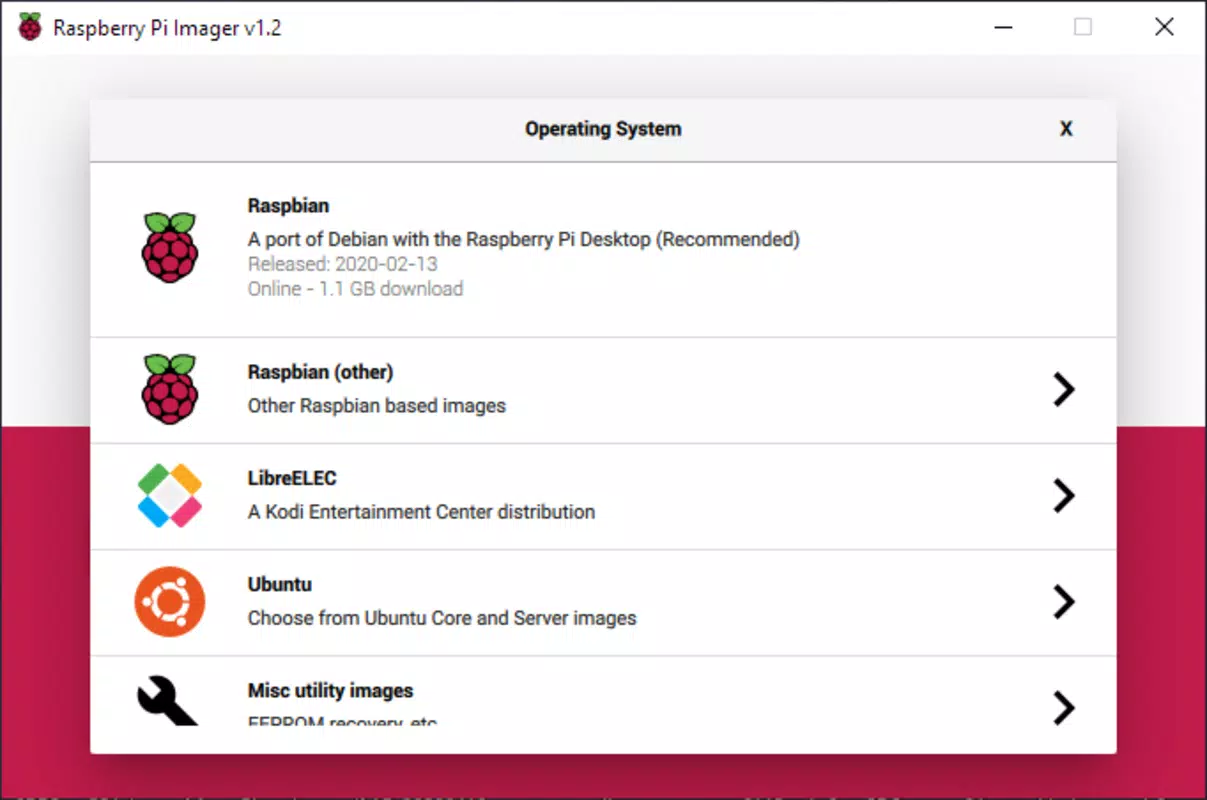
- Wide Range of Supported Operating Systems: The app includes official images for Raspbian, LibreELEC, Ubuntu, and other widely used OS variants. This ensures users can choose the most suitable environment for their project, whether it's a lightweight media player or a full Linux development platform.
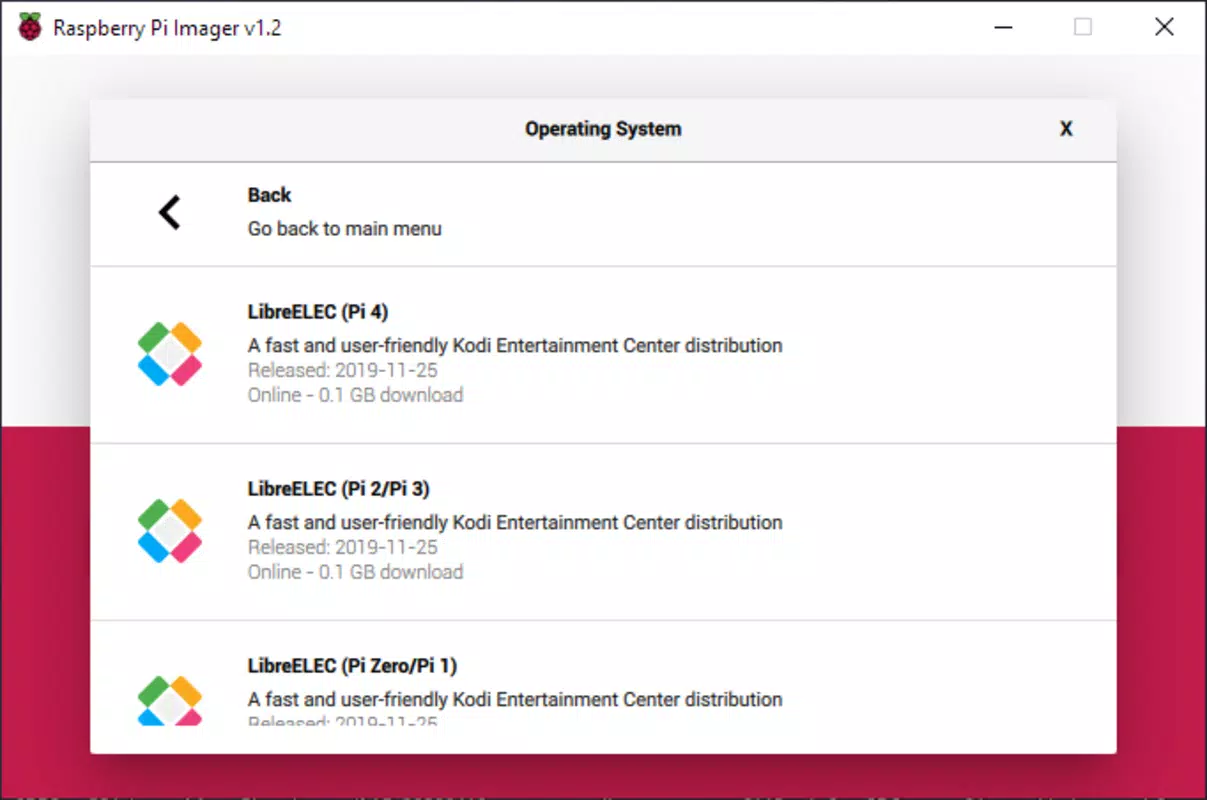
- Model-Specific OS Versions: Each OS comes with tailored versions optimized for specific Raspberry Pi models—such as Pi Zero/1, Pi 2/3, and Pi 4. This ensures that the OS is compatible with the hardware’s capabilities, improving performance and stability.
- Efficient and Fast Flashing: The tool completes the image writing process in just a few minutes, depending on the card speed and OS size. This time efficiency is crucial for users managing multiple devices or setting up systems under time constraints.
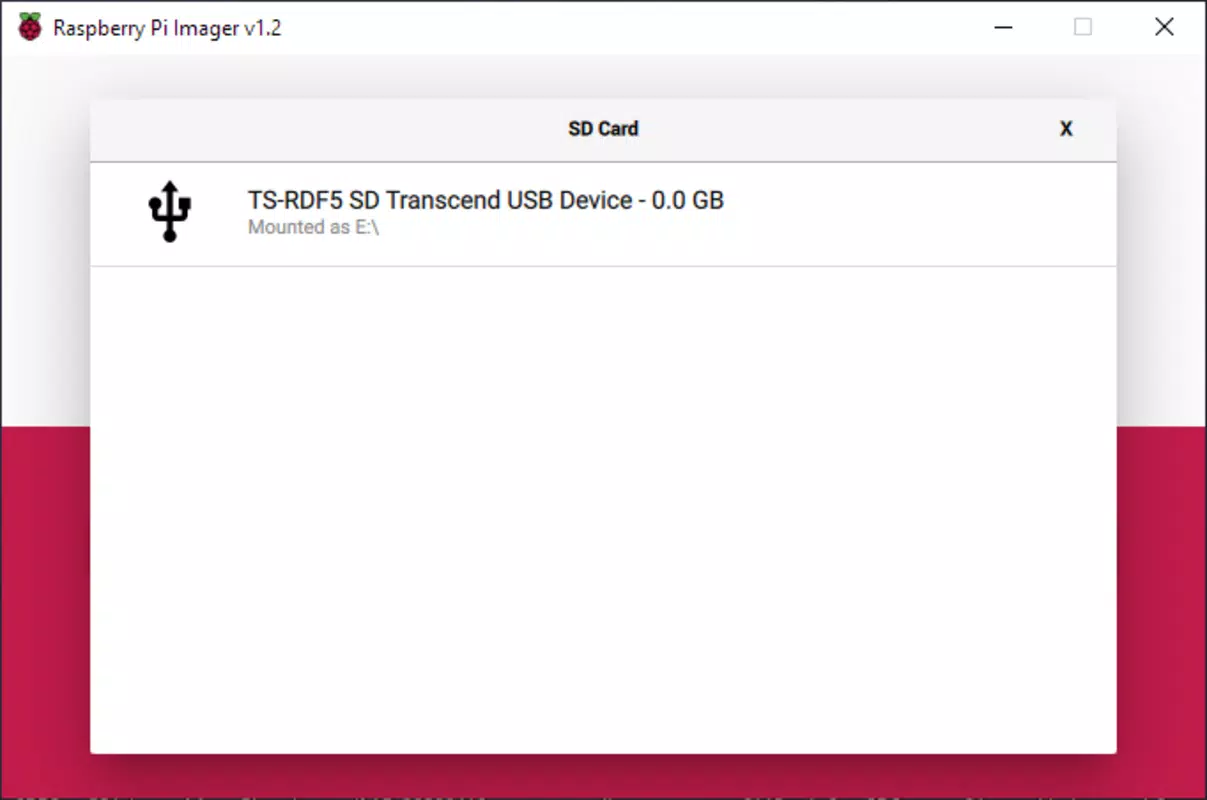
- Intuitive User Interface: The interface guides users through each step, from selecting the OS to choosing the target card. Visual indicators show progress and success, reducing user anxiety during the process.
For example, a teacher setting up 20 Raspberry Pi devices for a classroom can use the tool to flash identical images across all SD cards in a single session. Similarly, a hobbyist building a retro gaming console can quickly install LibreELEC with the correct Pi 4 version without manual configuration.
Interface, UX & Performance
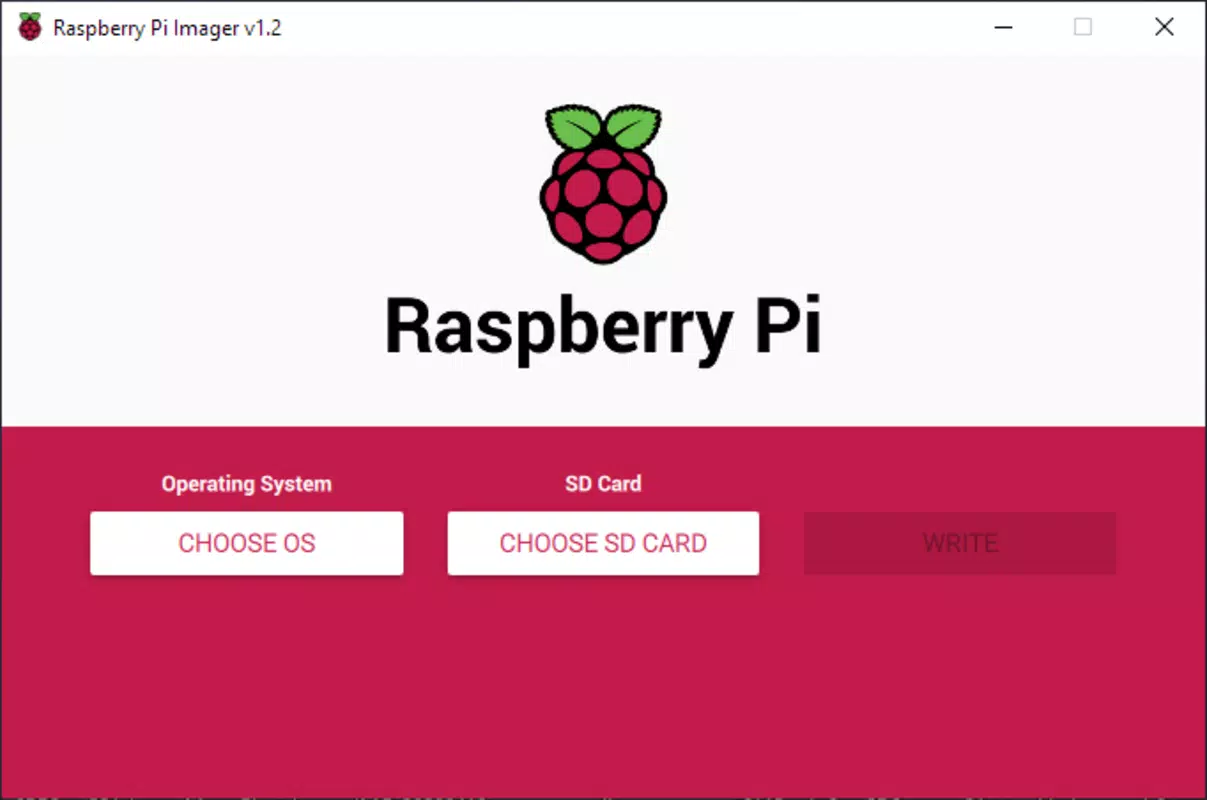
The user interface of Raspberry Pi Imager is clean, minimal, and purpose-driven. It features a straightforward layout with large buttons, clear labels, and visual feedback during the flashing process. Navigation is linear and intuitive: users select an OS, choose a storage device, and initiate the write process—no unnecessary steps or hidden menus.
Visual design emphasizes functionality over aesthetics, using a neutral color scheme and consistent iconography. This approach ensures accessibility across different screen sizes and resolutions. The interface adapts well to various device categories, from laptops to tablets, maintaining readability and touch responsiveness.
Although the developer did not list formal performance metrics, the tool demonstrates consistent responsiveness during image writing. Users report smooth operation even with larger OS files, such as full Ubuntu distributions. Stability is maintained across multiple sessions, with no observed crashes during typical usage.
Performance is heavily dependent on the SD card’s write speed and the host system’s capabilities. However, the software handles interruptions gracefully, allowing users to resume or retry if needed. The absence of background processes or telemetry ensures a lightweight footprint and predictable behavior.
Platform Compatibility & Technical Requirements
Raspberry Pi Imager is available for Windows, macOS, and Linux, making it accessible to users across major desktop operating systems. This cross-platform support ensures that users can prepare their SD cards regardless of their primary computing environment.
The current version is 1.7.3, with a file size of 158.3 MB. This relatively compact size reflects the app’s focused functionality, with no bloat or unnecessary components. The software does not require installation on most systems—it can be run directly from the downloaded executable or package.
Specific requirements were not listed. The developer did not specify minimum OS versions, CPU architecture, or RAM thresholds. However, given the tool’s lightweight nature and reliance on standard file I/O operations, it is expected to function on systems meeting basic modern desktop standards.
Compatibility information was not fully disclosed. Users are advised to ensure their system meets general desktop requirements and that their SD card reader is properly connected. The app supports standard SD and MicroSD cards, though performance may vary based on card class and speed.
Pros and Cons
Pros
- Official tool from the Raspberry Pi Foundation, ensuring reliability and support.
- Supports multiple operating systems, including Raspbian, LibreELEC, and Ubuntu.
- Provides model-specific OS versions for optimal compatibility.
- Fast and efficient image writing process, typically completed in minutes.
- Intuitive interface suitable for beginners and experts alike.
- Free to download and use, with no hidden costs or ads.
Cons
- Not available as a mobile app—limited to desktop platforms.
- Does not support custom or third-party OS images by default.
- Requires a physical SD card and reader, which may not be available to all users.
- No built-in verification step after flashing (though users can manually check).
- Compatibility details for older systems were not provided.
FAQ
Is Raspberry Pi Imager safe to download?
Yes, Raspberry Pi Imager is an official tool from the Raspberry Pi Foundation. It is distributed through secure channels and does not contain malware or adware.
Can I use Raspberry Pi Imager on Android or iOS?
No. The app is currently only available for Windows, macOS, and Linux. There is no mobile version available for Android or iOS devices.
Does Raspberry Pi Imager support custom OS images?
While the app primarily supports official Raspberry Pi OS images, it may accept custom images if they are in the correct format. However, the developer did not specify support for third-party or user-created OS files.
How long does it take to flash an OS image?
Flashing typically takes a few minutes, depending on the OS size and the SD card’s write speed. Larger images, such as Ubuntu, may take longer than smaller ones like Raspbian Lite.
Do I need to format the SD card before using Raspberry Pi Imager?
The tool automatically handles formatting during the write process. However, it is recommended to use a new or previously erased card to avoid conflicts.
Final Thoughts
Raspberry Pi Imager stands out as a must-have tool for anyone working with Raspberry Pi hardware. Its simplicity, reliability, and official backing make it the go-to solution for preparing storage media. Whether you're a student, educator, developer, or hobbyist, this software removes the friction from OS setup and accelerates your project timeline.
Its support for multiple OS versions tailored to specific Pi models ensures that users get the best possible performance and compatibility. The fast, secure, and straightforward workflow makes it ideal for both one-time setups and bulk deployments.
While it is limited to desktop platforms and does not support mobile devices, its functionality is unmatched in its niche. For users seeking a secure, free, and efficient way to install an OS on their Raspberry Pi, this tool delivers exceptional value.
Download Raspberry Pi Imager now


